No such language.
Veo is a family of generative video models developed by Google DeepMind — Google’s research arm in the field of artificial intelligence. Veo turns a text description or a starting image into a short video, aiming for high image quality, close following of the description and believable motion.
Veo is among the most recognisable names in AI video and is often named as a strong choice for cinematic-looking results. It suits content creators, marketing, advertising and anyone who wants professional-feeling video without a film production.
On genkiki.com Veo is available in generation 3.1 with several variants that balance speed and quality and add a mode with references.
On the platform Veo 3.1 comes in a standard and a fast variant, as well as separate variants that accept a reference.
| Variant | Modes | What it is for |
|---|---|---|
| Veo 3.1 Standard | Text to video, Image to video | Full quality for the best result |
| Veo 3.1 Fast | Text to video, Image to video | A faster variant for drafts and quick iterations |
| Veo 3.1 Reference | Image to video | Guides the generation by a reference image |
| Veo 3.1 Fast Reference | Image to video | The fast variant with a reference |
You describe the scene in words and Veo creates a video from the description — a good fit when you are starting from an idea alone.
You supply a starting frame and Veo brings it to life, keeping the look of the photo and adding movement of the environment, the objects and the camera.
The Reference variants use a reference image as a guide, so that a particular look or style is kept in the output. The “Fast” versions give a quicker result when speed is the priority.
Open the genkiki.com AI Studio, pick a Veo 3.1 variant for your task — Standard for the best quality or Fast for a quick iteration — and the mode, text to video or image to video. Describe the scene or upload a source image and start the generation.
Head to head: price in credits, maximum length, resolutions — and where each of the two falls short.
Real generations from the genkiki.com community. Click for full size.
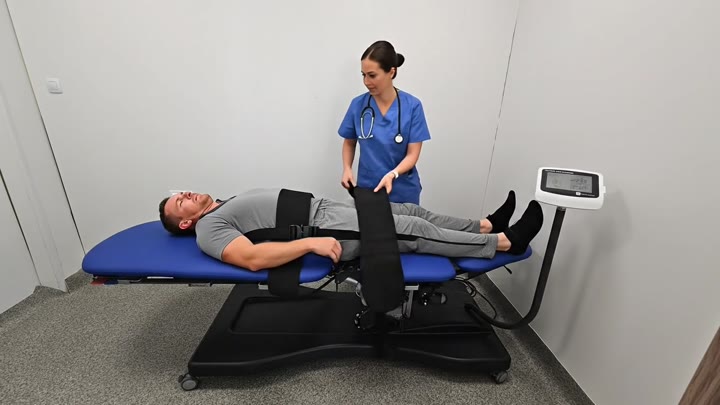
Мъж от бяла раса лежи на медицинска маса в клиника. Докторка го закача с терапевтични коланси, които го държат. Движенията са лечебни и внимателни. Звук на лека фонова музика на клиника. Мъжът постепенно се отпуска, болките му намаляват. В края той встава от масата без болка, с облекчение на лицето. Реалистично, професионално лечебно видео.
Generate your own video with Veo right in the browser — no installation, in English.